Prototype designer
A concept STL has a few open regions after a fast export and needs a structural check before iteration.
The designer gets a clearer starting point without confusing repair with a full redesign.
3d model repair aiMesh preparation
This stl repair online workflow helps you review a problem mesh, correct common structural faults, and move toward a more dependable 3D model repair process.
Related workflows
Choose the route that best matches your file, goal, or preferred level of guidance.
Honest boundaries
Online repair can improve mesh structure, but it cannot decide every design or manufacturing question for you.
A repair pass may close holes or correct topology, but it does not know whether a wall is thick enough for your printer or use case.
WorkaroundInspect thin features and revise the source geometry in your modeling tool.
If a scan or export has lost a large surface, an automatic fix may create a closure rather than restore the original shape.
WorkaroundCompare the result with the source or rebuild the missing region manually.
A repaired mesh can still fail because of orientation, supports, material behavior, slicing settings, or printer calibration.
WorkaroundSlice the output and review layers before committing to a physical print.
A file can pass structural checks while containing a detail that is unwanted for your project or difficult to reproduce.
WorkaroundRotate the repaired 3D model repair result and inspect critical faces at useful scale.
Simple sequence
The useful part of an online workflow is knowing what happens at each handoff, from the original mesh to the version you review.
Bring in the STL that needs attention and describe the issue you want checked, such as open edges, holes, non-manifold areas, or inconsistent normals.
Review the processed result against the original. Look for closed surfaces, unwanted shells, altered details, and any areas where the 3D model repair changes the intended shape.
Save or pass forward the reviewed result, then continue with slicing, measurement, assembly checks, or another design edit as appropriate.
Output comparison
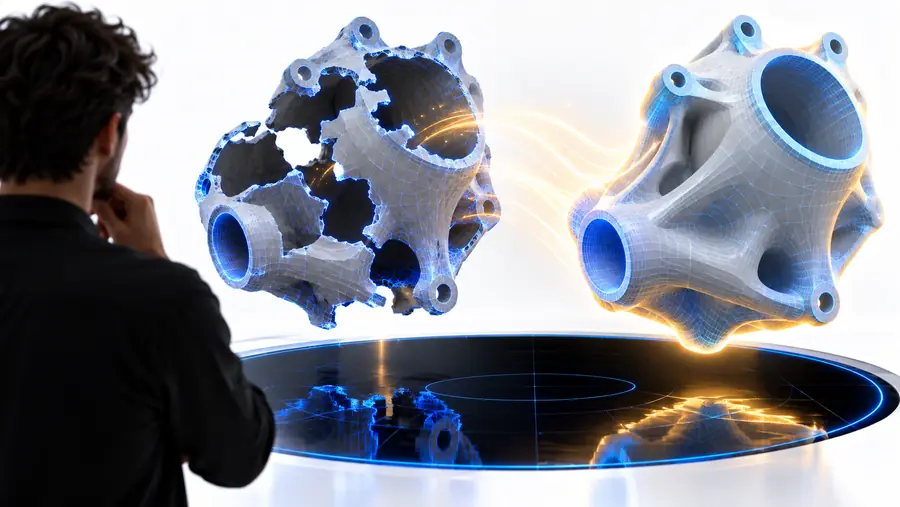
This side-by-side view separates structural cleanup from design work, so you can judge whether the result is suitable for your next step.
Source STL
Repaired STL
Source STL
May remain around cuts, scans, or incomplete surfaces
Repaired STL
Targeted for closure where the surrounding geometry supports it
Source STL
Can contain gaps or disconnected boundary regions
Repaired STL
More consistent connected regions after repair
Source STL
May include hidden or accidental geometry
Repaired STL
Reviewed for removal or separation when detected
Source STL
Normals may point in mixed directions
Repaired STL
Checked for more consistent outward orientation
Source STL
Closest to the uploaded source
Repaired STL
Should be compared against the source before approval
Source STL
Not assumed from the file extension alone
Repaired STL
Improved structurally, but still requires slicing and inspection
Visual check
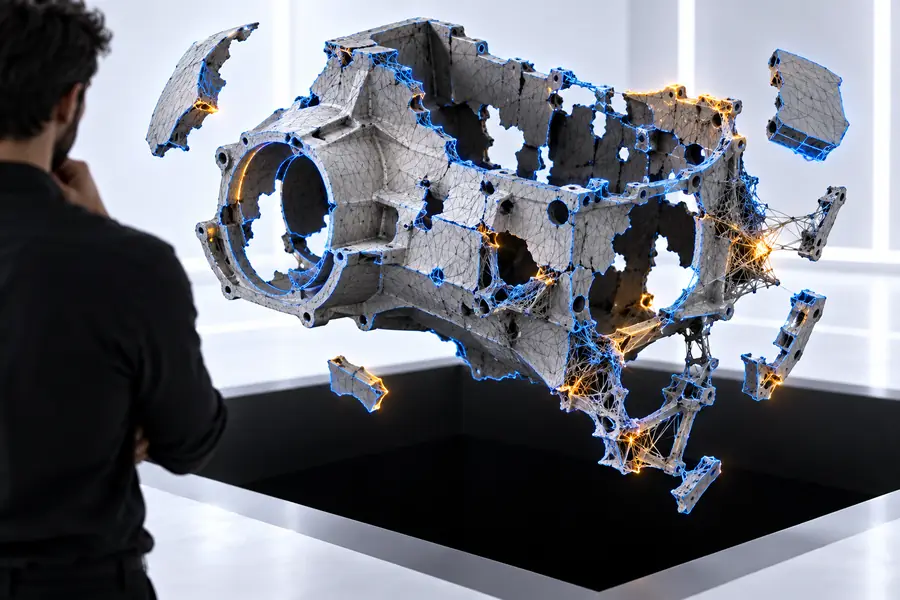
A before-and-after comparison makes subtle topology changes easier to discuss with a designer, technician, or print operator.
The repaired view is a review aid, not a print guarantee.
Practical use cases
Different teams arrive with different mesh problems, but each benefits from separating automatic cleanup from the final human decision.
A concept STL has a few open regions after a fast export and needs a structural check before iteration.
The designer gets a clearer starting point without confusing repair with a full redesign.
3d model repair aiA scanned object contains gaps, stray shells, and inconsistent surfaces that need triage before comparison.
The technician can identify which parts are suitable for cleanup and which need source-data work.
3d model repair examples freeAn STL arrives from another person with unclear topology and must be reviewed before slicing.
The operator has a more deliberate 3D model repair checkpoint before adjusting orientation and supports.
how to fix 3d model for printingA model moves between tools and the receiving team wants to confirm that the exported mesh is coherent.
The handoff includes a repair review instead of assuming that a successful export means a usable mesh.
repair obj file onlineFile checkpoints
These file labels describe common places where a mesh workflow can branch; they are not a promise that every format carries the same information.
Ready for review
Start with the file you have, describe the structural issue clearly, and use the result as a reviewable checkpoint. A careful 3D model repair process helps you spot what was corrected before design, slicing, or production decisions continue.
Repair my STLQuestions answered
An online STL workflow commonly targets structural problems such as open edges, holes, disconnected regions, internal shells, and inconsistent face orientation. The exact result depends on the geometry, so review the repaired 3D model repair output rather than treating the file extension as proof of readiness.
No. Repair can improve mesh structure, but it cannot guarantee suitable wall thickness, correct dimensions, good orientation, adequate supports, or successful slicing. Inspect the result and run it through your normal print-preparation checks.
It can, especially where a gap must be closed or disconnected geometry must be resolved. Compare important dimensions and details with the original before using the repaired file for a functional part.
Usually, structural issues are best reviewed before slicing because a slicer may interpret broken topology unpredictably. After the 3D model repair step, still inspect the slice preview and confirm that critical surfaces and features behave as intended.
A repair pass may close a boundary, but it cannot reliably reconstruct every missing design detail. If the damaged area matters, return to the source model, scan data, or a modeling tool and rebuild it before continuing.