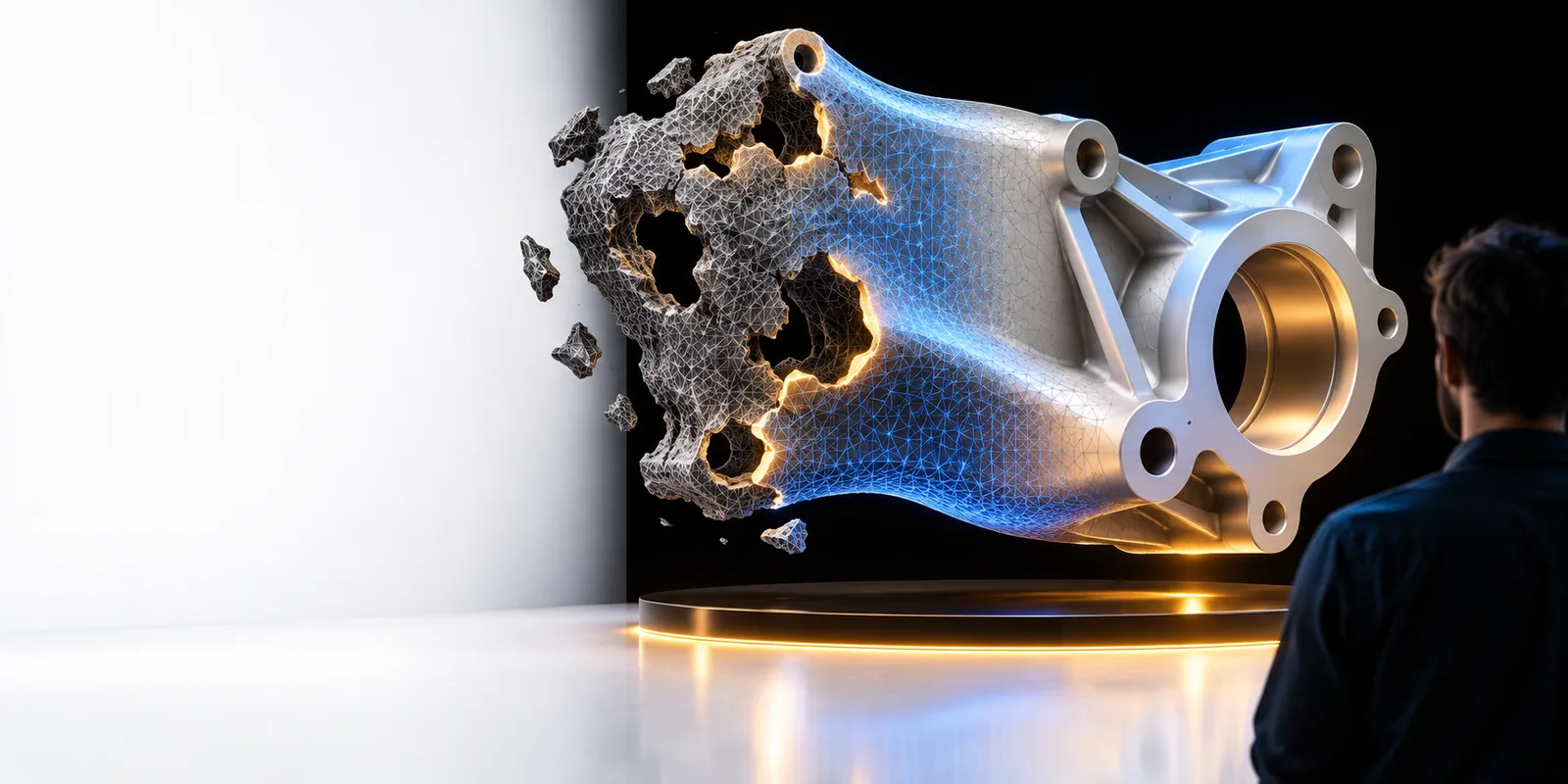
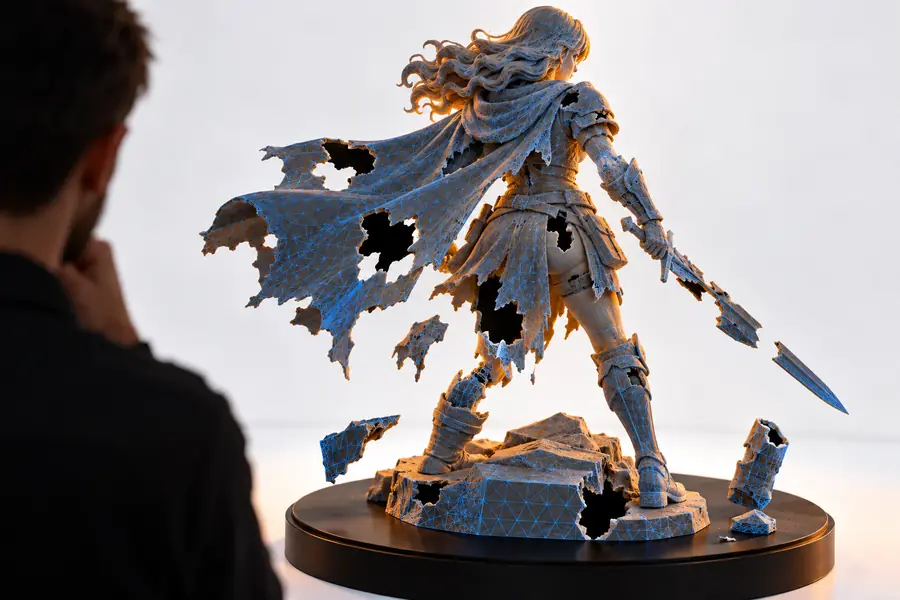
These 3d model repair examples free show how common mesh problems can be identified, corrected, and checked before an export. Use the workflows as a practical reference for models that look broken, fail validation, or need a cleaner path to printing.
A model can look acceptable from one angle and still contain gaps, flipped faces, self-intersections, or thin areas that create trouble later.
3 concrete workflows
Each workflow starts with the failure you can observe and ends with a validation step, so the repair is judged by the intended use rather than appearance alone.
1
Inspect the visible failure
Open the model and identify the symptom first: a missing surface, a split shell, a blocked cavity, or a section that appears too thin for the intended output.
2
Repair the mesh condition
Apply the smallest suitable correction to close gaps, resolve disconnected geometry, restore surface continuity, or remove obvious artifacts without changing the design unnecessarily.
3
Validate the intended result
Review the repaired object again, check its orientation and scale, then export a fresh copy only after the model behaves as expected for its next workflow.
Example output
The useful difference is not simply that the surface looks smoother. A good result preserves the recognizable form while making the object more coherent for inspection, conversion, or fabrication.
Before repair
After repair
Compare the silhouette, openings, edges, and underside—not just the thumbnail.
Compliance notes
Before treating a repaired file as ready, compare the model against the requirements of its destination. These checks help separate a visually improved mesh from one that is appropriate for the next step.
Before repair
After repair
1
Surface continuity
Before repair
Gaps, cracks, or disconnected patches may be visible.
After repair
Surfaces form a more continuous shell for review.
2
Face direction
Before repair
Normals may point inconsistently or hide interior faces.
After repair
Face orientation is reviewed for a consistent outside.
3
Shell structure
Before repair
Separate fragments can make the object ambiguous.
After repair
The intended outer form is easier to identify.
4
Small features
Before repair
Thin walls and narrow details may be difficult to inspect.
After repair
Delicate areas are checked against the intended use.
5
Export confidence
Before repair
The file may fail a later validator or conversion step.
After repair
A fresh export can be tested before handoff.
6
Design fidelity
Before repair
A repair may be mixed with accidental shape changes.
After repair
The corrected result is compared with the original design intent.
1Repair patterns covered on this page
3workflows
2Model situations mapped to practical outcomes
4use cases
3Compliance points to review before export
6checks
The product designer
A prototype has a visible split after several edits, and the team needs to preserve its proportions before another review.
The workflow isolates the damaged region, keeps the design intent in view, and creates a cleaner candidate for inspection.
Use these examples to identify the failure mode in your own model, then send the file through the repair workflow. Review the result against your intended use before exporting or sharing it.
They cover common mesh symptoms such as gaps, disconnected surfaces, inconsistent face direction, and areas that need closer inspection. The examples are meant to help you recognize a workflow, not to guarantee that every model can be repaired automatically.
A repaired model should still be checked against the requirements of the intended printer, material, and preparation software. Repair can improve mesh consistency, but it does not replace final validation, orientation, scaling, or slicing checks.
The goal of a careful repair is to correct damaged geometry while retaining the recognizable design. Compare important dimensions and details with the source model because aggressive or unsuitable corrections can change thin features or edges.
Review surface continuity, shell structure, face direction, small features, and the exported file in the next tool you plan to use. If the model is headed to fabrication, also confirm scale, orientation, wall requirements, and slicer behavior.