Hobbyist maker
You downloaded an STL that looks correct in a viewer but produces missing faces or slicing warnings.
Use a clean repair pass to close holes, unify normals, and create a more dependable solid before slicing.
stl repair onlinePrint preparation
This practical tutorial shows how to fix 3d model for printing by checking the mesh, correcting common defects, and validating the result before you slice. Work through the checks in order, then hand off a repair request when the model needs deeper correction.
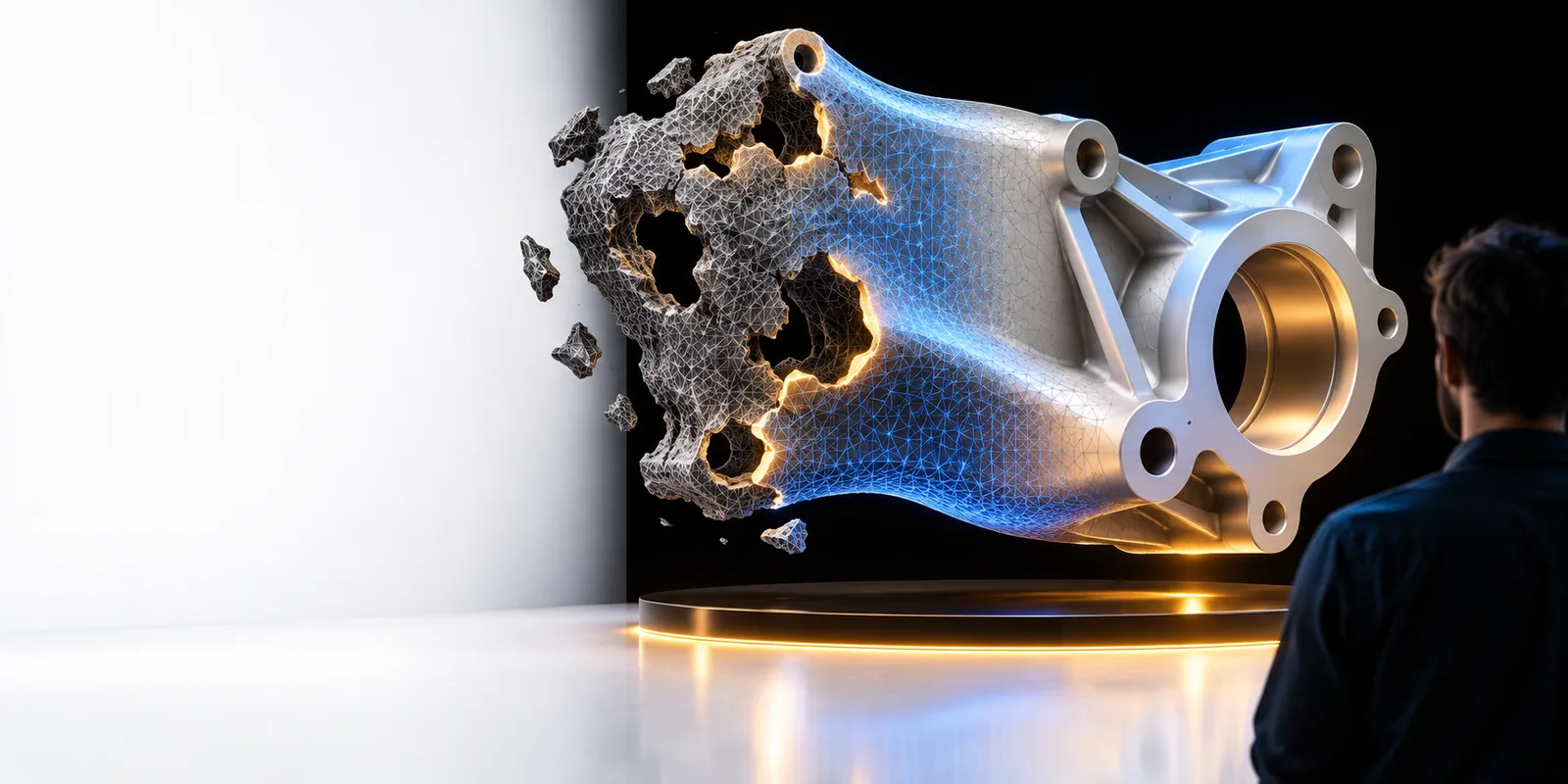
Start with context
A good repair begins with the right file, a clear print goal, and a quick inspection. Gather these details before changing geometry so you can tell a real fix from a cosmetic edit.
You downloaded an STL that looks correct in a viewer but produces missing faces or slicing warnings.
Use a clean repair pass to close holes, unify normals, and create a more dependable solid before slicing.
stl repair onlineA prototype export contains duplicate shells, tiny gaps, or disconnected details after several CAD revisions.
Review the mesh as a manufacturing handoff and isolate defects before they become failed prototype prints.
3d model repair aiA textured or sculpted OBJ needs geometry cleanup before it moves into a print preparation tool.
Keep the original source available, repair the geometry, and verify that the resulting surface remains usable.
repair obj file onlineA 3MF project contains several parts and one object causes the slicer to report an invalid mesh.
Identify the failing part, repair it separately when possible, and return to the project with clearer validation.
3mf repair online freeMesh repair workflow
Use a repeatable sequence rather than guessing at individual triangles. Save a source copy first, then confirm the repaired result in a second viewer or slicer.
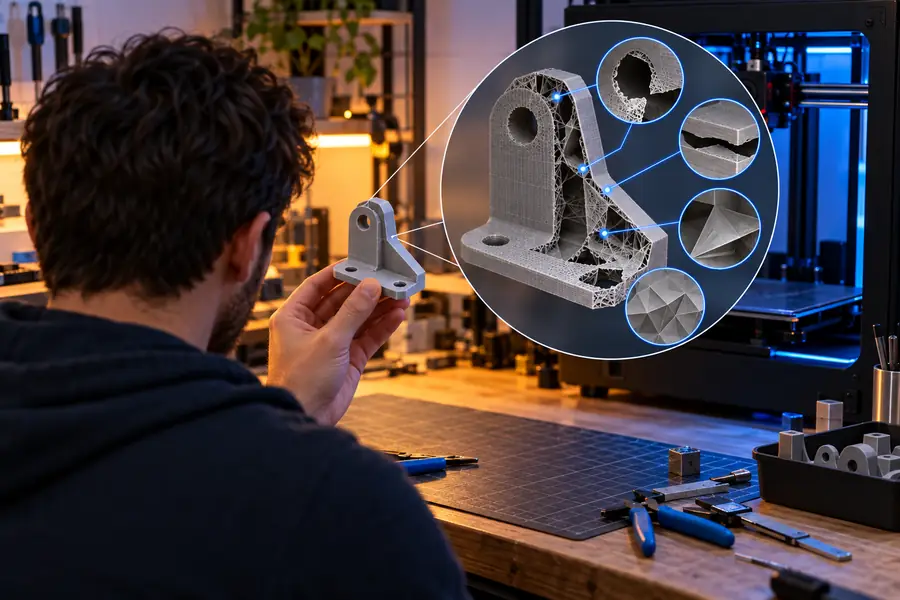
Open the model in a mesh viewer and look for open boundaries, inverted normals, non-manifold edges, self-intersections, duplicate shells, and floating fragments. Record the visible symptoms and the intended print orientation.
Run the appropriate repair operations: close small holes, remove isolated debris, merge duplicate vertices, resolve intersecting surfaces, and recalculate normals. Avoid aggressive remeshing when it could erase thin walls or designed details.
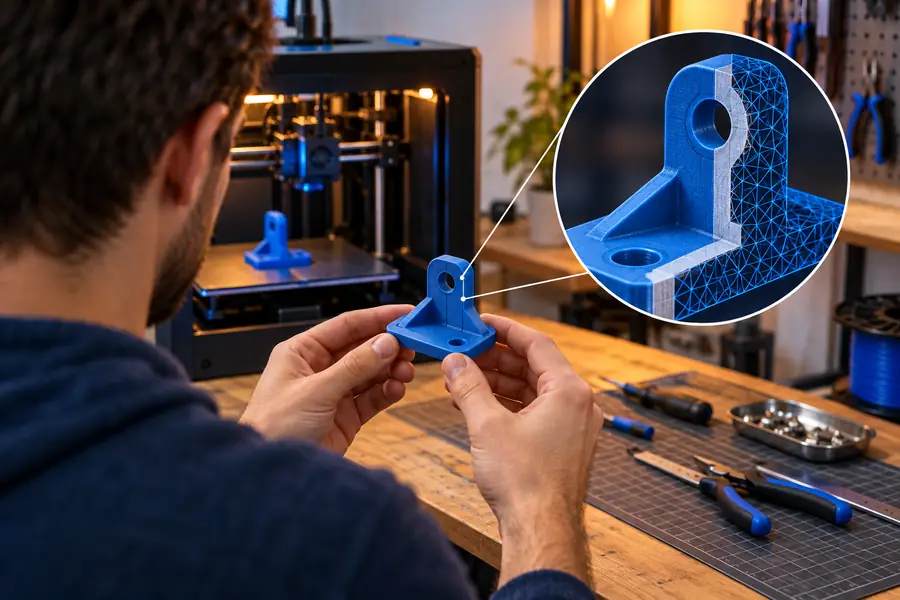
Check that the result is watertight, has a sensible scale, and contains no unexpected shells. Export a new file instead of overwriting the source, then load it into your slicer and inspect the layer preview.
Troubleshooting
These problems often look similar in a 3D viewer but require different responses. Match the symptom to the smallest repair that restores a printable solid.
Quality checks
Once the basic repair succeeds, use these checks to preserve design intent and reduce surprises in the slicer. The repaired file should be geometrically valid without becoming needlessly heavy or distorted.
Basic repair pass
Advanced validation pass
Basic repair pass
Make the mesh closed, coherent, and suitable for a first slice.
Advanced validation pass
Preserve intent while testing edge cases that can affect production.
Basic repair pass
Close open edges and confirm that visible holes are intentional.
Advanced validation pass
Inspect thin regions and planned openings so repair does not seal functional features.
Basic repair pass
Recalculate inconsistent face directions across the surface.
Advanced validation pass
Check internal shells and section views for locally reversed faces.
Basic repair pass
Remove obvious floating fragments that cannot print or connect.
Advanced validation pass
Keep purposeful small details and test their minimum printable size.
Basic repair pass
Confirm the unit interpretation before exporting.
Advanced validation pass
Compare a known dimension and verify scale again after import into the slicer.
Basic repair pass
Open the layer preview and look for missing or empty regions.
Advanced validation pass
Review several layers, supports, bridges, and perimeters around repaired areas.
Basic repair pass
Export a separate repaired copy and retain the original.
Advanced validation pass
Record the repair version, source format, scale, and validation result for repeatability.
Know the boundaries
Mesh repair can restore connectivity and surface validity, but it does not decide whether a bracket is strong enough or whether a product has the right dimensions.
WorkaroundUse CAD or sculpting software for intentional design changes, then run validation again.
A watertight object can still have walls that are too thin, unsupported overhangs, weak bridges, or a poor print orientation.
WorkaroundCheck wall thickness, orientation, supports, and layer previews in the slicer.
Closing a hole or remeshing a surface can alter sharp edges, engraved marks, and small features near the defect.
WorkaroundCompare the repaired output with the source and use a lighter repair pass when detail matters.
Repair tools can preserve geometry while the receiving application interprets units differently, making the part unexpectedly large or small.
WorkaroundMeasure a known feature and confirm units in both the repair workflow and the slicer.
The goal is not simply a cleaner view. A useful repair produces a coherent mesh that survives export, import, and layer inspection without hiding design changes.
Ready for the next check
Describe the model problem and the result you need. The repair workflow can help you move from visible mesh defects toward a file that is easier to inspect and validate before printing.
Repair my 3D modelTutorial FAQ
Look for slicer warnings, missing faces, open boundaries, unexpected holes, non-manifold edges, reversed surfaces, or isolated fragments. A model can appear normal in a basic viewer and still fail during slicing, so the layer preview is an important final check.
Keep an untouched copy of the source file, then inspect the mesh for open edges, duplicate shells, self-intersections, and incorrect normals. Identify the exact symptom before applying a repair so you do not remove intentional geometry.
Repair can make the surface coherent, but it does not automatically make every feature manufacturable. Thin walls, overhangs, bridges, orientation, and supports still need to be evaluated in the slicer or adjusted in a modeling tool.
Use the original CAD or sculpting source when you need to change dimensions, wall thickness, or design intent. An STL repair is appropriate when the shape is already correct and the main problem is a broken or inconsistent mesh.
Export a separate repaired copy, reopen it in another viewer or your slicer, confirm the scale, and inspect multiple layers around the repaired area. A successful check should show a coherent solid without missing regions or unexpected internal shells.