Hobbyist maker
A downloaded figurine looks correct in the viewer but contains a visible split near the base.
Keep the original, inspect the boundary, repair the disconnected area, and confirm the sliced layers are continuous.
stl repair onlineSTL mesh care
Free stl repair starts with knowing what is wrong: open edges, flipped normals, holes, and disconnected shells can all affect a successful print. Use the workflow below to inspect an STL, choose the right level of intervention, and prepare a cleaner handoff.
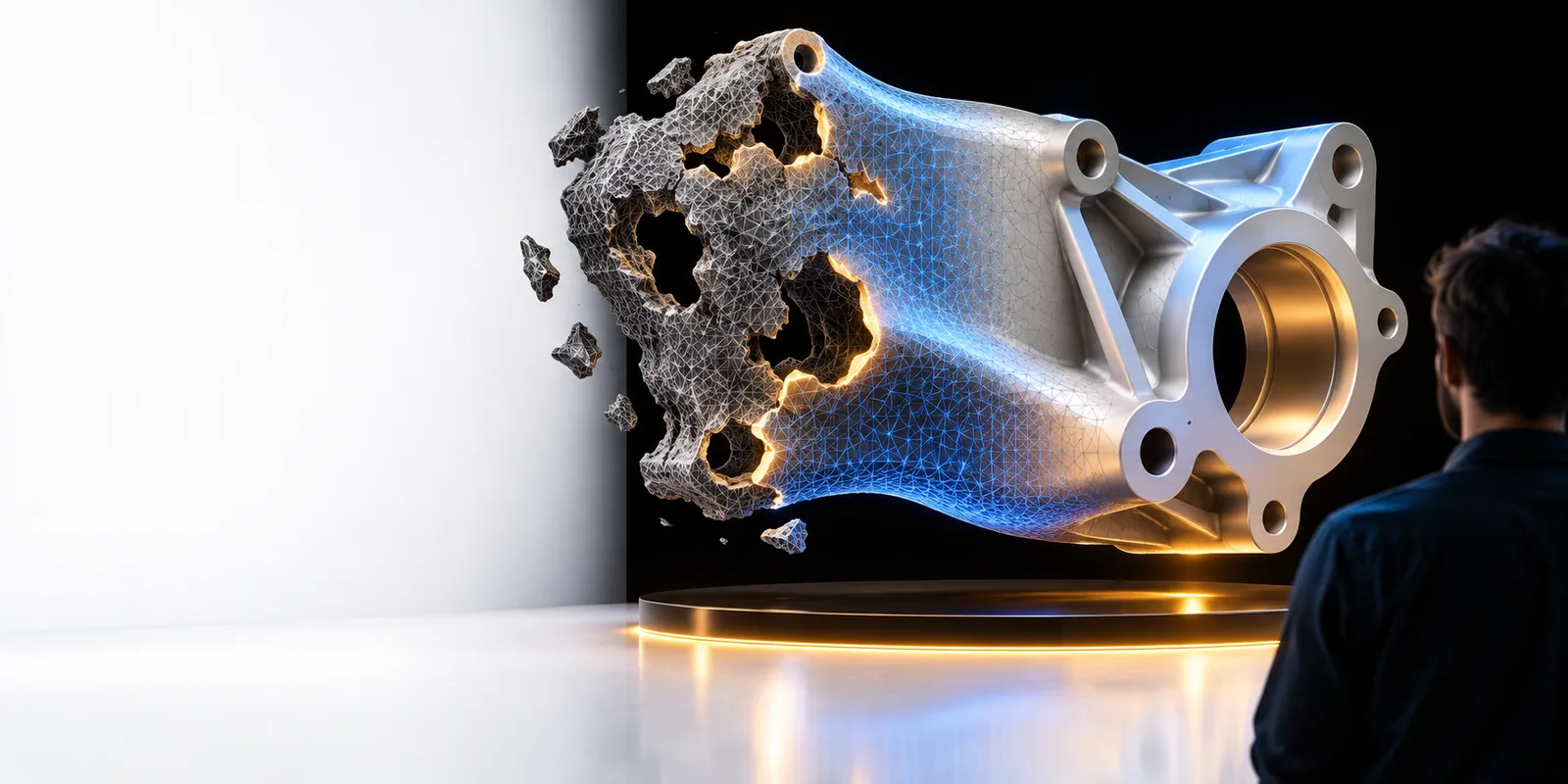
A short check before editing helps separate a damaged mesh from a slicer, scale, or geometry problem.
Make a copy before repair so you can compare the result with the source and return to the unmodified mesh if needed.
Decide whether the model is for FDM, resin, visualization, or measurement. The acceptable wall thickness and detail level can differ.
Look for holes, open boundaries, overlapping shells, inverted faces, stray pieces, or thin areas that may confuse a slicer.
A repaired mesh is not finished until you inspect its normals, shell structure, scale, and sliced preview.
The best route depends on how much control you need and whether the fault is obvious or structural.
Self-service workflow
Specialist-assisted workflow
Self-service workflow
You inspect the mesh and describe the visible problem.
Specialist-assisted workflow
You provide the model and a clear outcome for guided analysis.
Self-service workflow
Simple holes, open edges, flipped faces, or isolated fragments.
Specialist-assisted workflow
Unclear failures, complex assemblies, or geometry that needs interpretation.
Self-service workflow
You decide which changes to accept and what to preserve.
Specialist-assisted workflow
You spend less time diagnosing the issue but still review the result.
Self-service workflow
Useful when you repair similar models and can keep a checklist.
Specialist-assisted workflow
Useful when each model has a different defect pattern.
Self-service workflow
You inspect the repaired mesh and slicer preview yourself.
Specialist-assisted workflow
You still need to confirm scale, walls, orientation, and print intent.
Self-service workflow
More hands-on investigation and decision-making.
Specialist-assisted workflow
Less direct control over the repair process.
Self-service workflow
Keep the source file and compare before exporting.
Specialist-assisted workflow
State the required format and printing purpose up front.
Here is a compact example of how four common users can move from a questionable STL to a reviewed result.
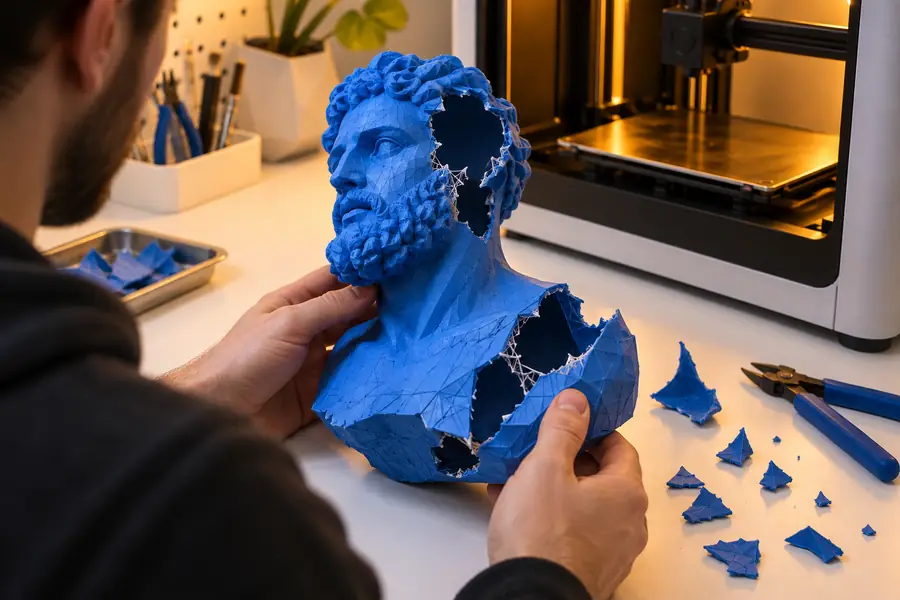
A downloaded figurine looks correct in the viewer but contains a visible split near the base.
Keep the original, inspect the boundary, repair the disconnected area, and confirm the sliced layers are continuous.
stl repair onlineA bracket exports from CAD with a thin wall and a few non-manifold edges.
Check whether the wall is intentional, correct the invalid edges, then verify that the chosen print process can produce it.
how to fix 3d model for printingA scan contains small holes, floating fragments, and inconsistent surface direction.
Remove irrelevant fragments, close only meaningful gaps, and inspect normals before using the model for fabrication.
3d model repair aiAn OBJ-to-STL handoff creates a mesh that opens but fails during slicing.
Compare the exported structure with the source and isolate whether conversion or topology caused the failure.
repair obj file onlineThe goal is not to hide every defect visually. Check topology, shell continuity, normals, scale, and the sliced preview before treating the model as ready.
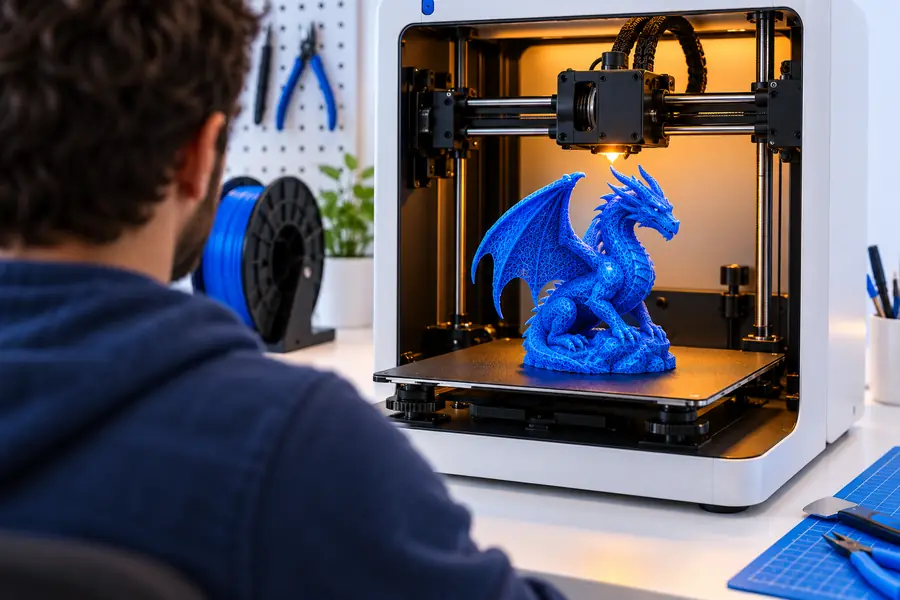
Describe the STL issue, open the repair workspace, and use the returned guidance as part of your own inspection process. Keep the source file and validate the result before sending it to a printer.
Open repair workspaceAnswers to common questions about handling STL mesh faults and choosing a sensible repair workflow.
Some online tools provide an accessible starting point, but features and usage terms vary by service. Check the tool’s current access conditions and keep a local copy of the original before uploading or exporting.
Typical issues include holes, open boundaries, flipped normals, non-manifold edges, overlapping shells, and disconnected fragments. Repair does not automatically correct incorrect dimensions, unsuitable wall thickness, or design intent.
Inspect the mesh for closed, coherent shells and confirm that its scale and orientation are correct. Then open it in your slicer and review the layers, supports, thin walls, and unexpected gaps.
It can. Closing a hole, removing a fragment, or rebuilding a surface changes geometry, so compare the repaired file with the source and check that important edges and openings were preserved.
Use the source model when you control it and the problem comes from the design or export settings. A mesh repair is more practical when the source is unavailable or the defect is limited to topology and surface continuity.